
How to Change Hair Color in a Photo: The Complete AI Guide
Everything you need to know about virtual hair color try-on — how the AI works, how to read hair color levels and tones, how to get the best results, and how to keep your photos private.
What is a virtual hair color try-on?
A virtual hair color try-on (or AI hair color changer) is a tool that lets you preview how a hair color would look on your own photo before you dye your hair. Instead of imagining a shade or relying on a generic photo of a model, you upload a portrait and the tool recolors only the hair region — keeping your face, skin and background exactly as they are.
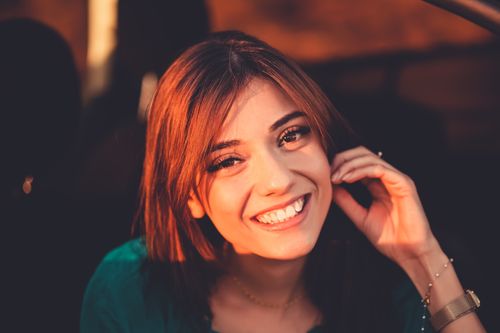 Before
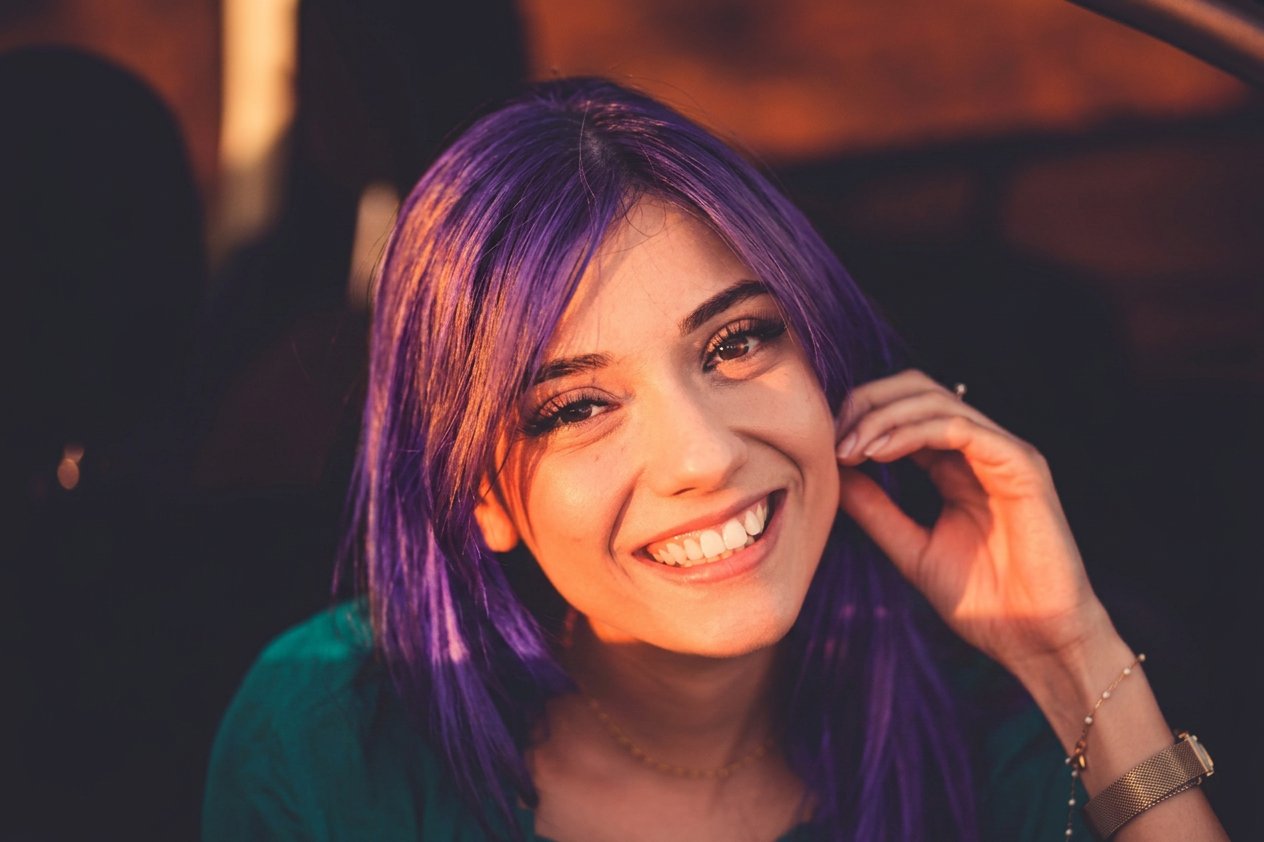 After
AfterHow does AI hair color changing work?
The tool runs entirely in your browser using WebAssembly. The process has four stages:
- 1
Hair segmentation
A MediaPipe hair-segmentation model creates a confidence mask that separates hair from the background, face, skin and clothes.
- 2
Mask refinement
A guided filter snaps the mask onto real strand edges and feathers the boundary, so there are no white or dark halos.
- 3
Recoloring in OKLab
The engine takes the target color's hue and chroma but keeps the photo's own lightness, so strands and highlights stay visible and the result looks natural.
- 4
Blending
The dyed hair is blended with the original photo using the fractional mask, so partial-coverage strands never produce halos.
Step-by-step: change your hair color in a photo
Upload a portrait
Open the tool and drag a photo into the drop zone (or tap “Upload Image”). JPG, PNG and WebP files up to 10 MB are supported.
Wait for the AI hair mask
A hair-segmentation model detects your hair and draws a precise mask in about a second. A second model protects your face, skin and clothes.
Browse the palette
Tap presets in the Trending, Natural, Vibrant or Fashion tabs, or open the custom color picker to dial in an exact hex shade.
Adjust intensity
Use the intensity slider to make the color subtle (light tint) or bold (full dye), and compare with the before/after slider.
Download the HD result
When you are happy, download the watermark-free PNG at full resolution and share it with your stylist or friends.
Why results look natural


Because the target color is locked to your photo's brightness and highlight detail, the dyed result keeps the texture, shine and dimension of your real hair.
Hair color levels 1–10, explained
Salons describe hair color by level (depth) andtone (reflect). Level 1 is the darkest black and level 10 is the lightest platinum blonde. The chart below shows common levels with their tone swatches.
| Level / Tone | Ash (.1) | Gold (.3) | Copper (.4) | Red (.6) | Violet (.2) |
|---|---|---|---|---|---|
| 10 — Lightest BlondePlatinum | |||||
| 8 — Light BlondeGolden Blonde | |||||
| 7 — Medium BlondeCaramel | |||||
| 6 — Dark BlondeBronde | |||||
| 4 — Medium BrownChestnut | |||||
| 1 — BlackJet Black |
Hair color tone families
The second number in a shade code describes the tone, or reflect. Understanding tones helps you describe exactly what you want to your stylist — and pick the right preview in the tool.
Natural
No added reflect — pure tone. The most neutral choice.
Ash
Blue-based, cool. Neutralizes warmth and brassiness.
Violet
Violet base, iridescent. Cools yellow tones.
Gold
Yellow-based, warm. Adds sunny, honey warmth.
Copper
Orange-based, warm. Rich, metallic shine.
Red
Red base, maximum intensity. Bold and fiery.
Tips for the most realistic preview
- Use a front-facing portrait with even lighting so the hair is clearly separated from the background.
- Keep hair dry and brushed; heavy shadows or flyaway strands can reduce mask precision.
- Try the same photo in several levels (10 → 4) to see how light or dark suits you.
- Compare warm tones (gold, copper) against cool tones (ash, violet) to find your contrast.
- Use the intensity slider for a subtle tint versus a full-color preview.
Your photos stay private
All segmentation and recoloring runs locally in your browser. The tool has no upload endpoint, so your photos are never transmitted, stored, or used for training. The AI models are downloaded once from public CDNs and then run on your device.
Frequently asked questions
Is changing hair color in a photo free?
Yes. The AI hair color changer is 100% free: unlimited previews, a custom color picker, and watermark-free HD downloads — no account or sign-up required.
Does the tool upload my photo?
No. The photo is segmented and recolored entirely in your browser using WebAssembly. There is no upload endpoint, so your image never leaves your device.
What photo works best?
A JPG, PNG or WebP up to 10 MB. Front-facing portraits in even lighting with clearly visible hair produce the most precise hair mask.
Can I try balayage, ombré or fashion colors?
Yes. The palette includes natural, vibrant and fashion presets (including balayage, ombré and money piece styles) plus a custom color picker for any shade.
How realistic are the results?
The recolor engine works in a perceptually uniform color space and keeps the photo's own lighting and strand detail, so results look like a salon preview rather than a painted filter.
Ready to see a new color on you?
Upload a portrait and preview dozens of shades in seconds — free, private, no watermark.
Open the hair color changer